Follow these steps to update your [YOUR_USERNAME]@thebeach.com email account on your iPhone.
Open Settings, then tap Apps.
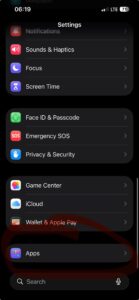
Tap Mail.
Tap Mail Accounts.
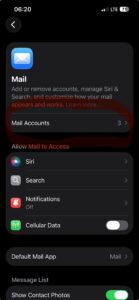
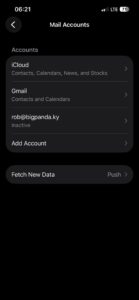
Tap Add Account.
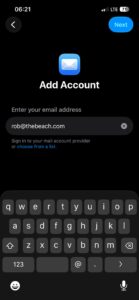
Enter your email address [YOUR_USERNAME]@thebeach.com, then tap Next.
Tap Add Other Account…
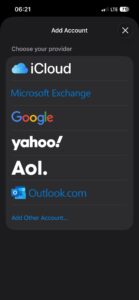
Tap Add Mail Account.
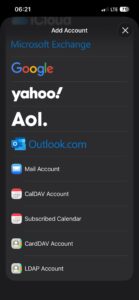
Enter your Name, your email address [YOUR_USERNAME]@thebeach.com, your password, and a description (e.g., “The Beach”), then tap Next.
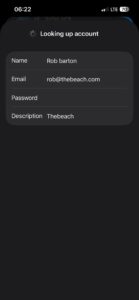
At the top, select IMAP.
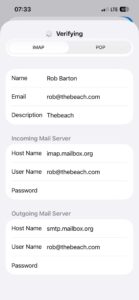
- Under Incoming Mail Server, enter the following:
- Host Name:
imap.mailbox.org - Username:
[YOUR_USERNAME]@thebeach.com - Password: Your password
- Under Outgoing Mail Server, enter the following:
- Host Name:
smtp.mailbox.org - Username:
[YOUR_USERNAME]@thebeach.com - Password: Your password
- Tap Next and wait for iOS to verify the settings.
Choose what you want to sync (at least Mail), then tap Save.