Follow these steps to update your [YOUR_USERNAME]@thebeach.com email account on your iPhone.
First, remove your old [YOUR_USERNAME]@thebeach.com account so your iPhone does not keep using the old settings.
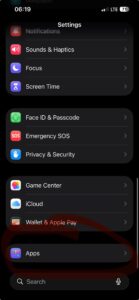
Open Settings, then tap Apps.
Tap Mail.
Tap Mail Accounts.
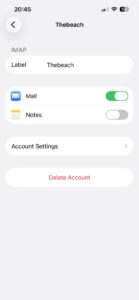
Tap your [YOUR_USERNAME]@thebeach.com account
Tap Delete Account
Now add your account again using the new settings.
Again, open Settings, then tap Apps.
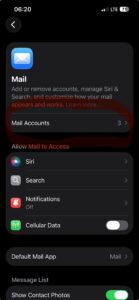
Tap Mail.
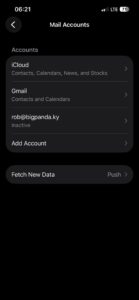
Tap Mail Accounts.
Tap Add Account.
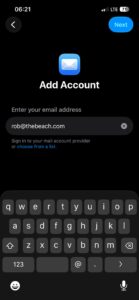
Enter your email address [YOUR_USERNAME]@thebeach.com, then tap Next.
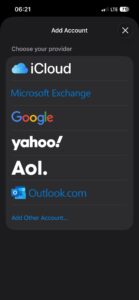
Tap Add Other Account…
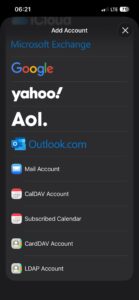
Tap Add Mail Account.
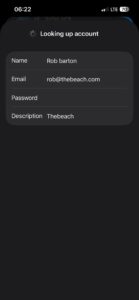
Enter your Name, your email address [YOUR_USERNAME]@thebeach.com, your password, and a description (e.g., “The Beach”), then tap Next.
At the top, select IMAP.
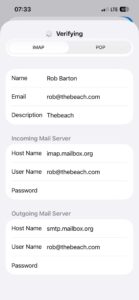
- Under Incoming Mail Server, enter the following:
- Host Name:
imap.mailbox.org - Username:
[YOUR_USERNAME]@thebeach.com - Password: Your password
- Under Outgoing Mail Server, enter the following:
- Host Name:
smtp.mailbox.org - Username:
[YOUR_USERNAME]@thebeach.com - Password: Your password
- Tap Next and wait for iOS to verify the settings.
Choose what you want to sync (at least Mail), then tap Save.